
Linux is the foundational operating system of modern cloud infrastructure, containerization (Docker/Kubernetes), and CI/CD automation pipelines. Whether you are troubleshooting container logs, configuring storage, or writing shell scripts, mastering Linux CLI commands is essential for every DevOps engineer.
This guide covers everything from basic navigation to process management, networking, and dynamic storage management using LVM.
1. Operating System : Architecture & Core Concepts
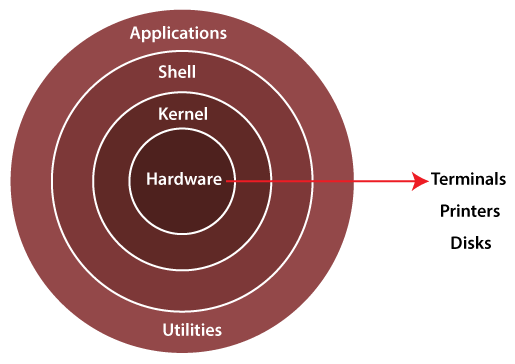
Core Components of Linux
Kernel: The core of the operating system. It acts as a bridge between your hardware (CPU, RAM, Disks) and running applications.
Shell: The command-line interpreter (e.g.,
bash,zsh) that takes user commands and passes them to the Kernel for execution.Bootloader (GRUB): The first software program that runs when a system starts up. It loads the Linux Kernel into system memory.
System Identity & Environment Utilities
# Display system kernel name, hostname, and architecture details
uname -a

# Check system uptime, running time, and current load average
uptime

# Display current system date and time
date

# See who is currently logged into the system
who

# Show current logged-in username
whoami

# View user identity details (UID, GID, and assigned groups)
id

# Find the exact binary path of a command/program
which bash

# Terminal Text Editors (Used for editing configuration files on remote servers)
nano config.env    # Beginner-friendly terminal editor
vim config.env     # Powerful modal text editor
Power & System Management:
# Execute administrative commands with elevated privileges
sudo <command>

# Gracefully reboot or shut down remote servers
sudo reboot
sudo shutdown -h now
How Web Requests Work (Client-Server Architecture)
Client Request: A user enters a domain (e.g.,
example.com) in their browser.DNS Lookup: The browser queries a DNS server (Domain Name System) to resolve the domain name to its destination IP Address.
Packet Transmission: Data is split into network packets routed across ISPs, undersea cables, and routers via protocols like TCP/IP.
Server Processing:
Web Server (e.g., Nginx, Apache): Handles incoming HTTP/HTTPS requests and serves static content.
Application Server (e.g., Django, Node.js, Spring Boot): Processes business logic and dynamic queries.
Hard Links vs. Soft Links (Symlinks)
Feature | Hard Link | Soft Link (Symlink) |
Definition | Direct pointer to the underlying file data (Inode). | A shortcut pointing to the target file path. |
Original File Deleted | Content remains accessible through the hard link. | Link becomes broken (dangling). |
Command Syntax |
|
|
Cross-Filesystem | Cannot cross different filesystems or link directories. | Can link across filesystems and target directories. |
2. Directory Navigation & File Management
Essential Navigation Commands
# Print working directory
pwd


# Create a new directory
mkdir devops_project

# Create nested directories without error if they already exist
mkdir -p build/logs/app

# Create an empty file or update access timestamps
touch server_config.txt

# Remove files/directories (Use -rf with caution!)
rm -rf build/
Reading & Inspecting File Contents
# Display entire file contents
cat application.log

# View content of a compressed file without unzipping
zcat application.log.gz

# View the first 10 lines (or specify count with -n)
head -n 5 server.log

# View the last 10 lines
tail -n 5 server.log

# Stream logs in real time (Crucial for live debugging)
tail -f /var/log/syslog

# View large files page-by-page (Press 'q' to exit)
less application.log

# Move or rename files
mv config.old config.new

# Word, line, and byte count
wc application.log
3. Package Management Across Distributions
Different Linux distributions use different package managers to install, update, and manage dependencies:
# Ubuntu / Debian (APT)
sudo apt update && sudo apt install -y nginx

# RHEL / CentOS (YUM - Legacy)
sudo yum install -y nginx

# Fedora / RHEL 8+ (DNF - Modern)
sudo dnf install -y nginx

# Alpine Linux (APK - Standard in lightweight Docker base images)
apk add --no-cache curl
4. Text Processing & Shell Scripting Tools
1. grep (Global Regular Expression Print)
Used to search for specific text patterns within files or command outputs.
# Search case-insensitively (-i) recursively (-r) across all files
grep -ir "ERROR" /var/log/

# Count total occurrences of a string
grep -ic "HTTP/1.1 500" access.log
2. find
Locates files and directories based on metadata (name, size, permissions, modified time).
# Find a file by name in the current directory
find . -name "app.conf"

# Find files modified in the last 24 hours
find /var/log -mtime -1
3. awk
A powerful text processing tool designed for column-based data.
# Print the 1st column of a log file (default separator is space)
awk '{print $1}' access.log

# Filter logs where column 2 timestamp is within a specific range
awk '$2 >= "08:53:00" && $2 <= "08:54:00" {print $0}' app.log

# Specify custom delimiter using -F (e.g., colon separated)
awk -F':' '{print $1}' /etc/passwd
4. sed (Stream Editor)
Used for automated text filtering and inline string substitution.
# Replace "INFO" with "DEBUG" in-place (-i) across all occurrences (/g)
sed -i 's/INFO/DEBUG/g' app.log

# Print only matching lines
sed -n '/ERROR/p' app.log
5. Quick Utilities: cut, tee, sort, diff
# Extract the 1st field from comma-separated values
cut -d',' -f1 data.csv

# Output text to screen AND append/write to a file simultaneously
echo "Deployment Successful" | tee -a deployment.log

# Sort lines alphabetically or numerically
sort access.log | uniq -c

# Compare differences between two configuration files
diff config_v1.env config_v2.env
4. File Permissions, Security & User Management
Linux File Permissions Breakdown
In Linux, permission targets are structured into three groups: Owner (User), Group, and Others.

Numeric Octal Values:
Read (
r) = 4Write (
w) = 2Execute (
x) = 1
Common chmod Examples:
# Owner gets rwx (7), Group gets r-x (5), Others get r-x (5)
chmod 755 script.sh

# Give ONLY read permissions to owner (Standard for SSH keys)
chmod 400 id_rsa

# Add execute permissions to file
chmod +x deploy.sh
Ownership Management (chown & chgrp)
# Change owner to "appuser" and group to "appgroup" recursively
sudo chown -R appuser:appgroup /var/www/app
Understanding umask
umask (User Mask) defines default permissions for newly created files and directories.
Base Permissions: Directories start at
777(rwxrwxrwx), Files start at666(rw-rw-rw-).Calculation: Default Permission = Base Permission -
umask.Example (
umask 022):New Directory:
777 - 022 = 755(rwxr-xr-x)New File:
666 - 022 = 644(rw-r--r--)
6. User & Group Administration
# Create a user with a default shell and home directory
sudo useradd -m -s /bin/bash devuser

# Set password for the new user
sudo passwd devuser

# Create a group
sudo groupadd devops

# Add a user to a group
sudo gpasswd -a devuser devops

# View user and group details
cat /etc/passwd
cat /etc/group
7. Compression & Remote File Transfer
Archiving and Compression
# ZIP compression and extraction
zip -r backup.zip /var/www/html/
unzip backup.zip

# Tarball creation and extraction (Gzip)
tar -cvzf application.tar.gz /app/     # Compress (-c) with gzip (-z)
tar -xvzf application.tar.gz           # Extract (-x) files
Remote File Transfer (scp)
scp (Secure Copy Protocol) uses SSH to securely transfer files between remote Linux hosts.
# Copy local file to a remote server
scp -i "key.pem" local_config.env ubuntu@10.0.0.15:/home/ubuntu/

# Copy directory from remote server to local machine
scp -r ubuntu@10.0.0.15:/var/log/app ./remote_logs/
8. Resource Monitoring & Process Management
System Resource Monitoring:
# Live task manager (CPU & Memory consumption)
top
htop    # Interactive and modern alternative to top

# Check Disk space usage across all mounted file systems
df -h

# Check RAM and Swap usage in human-readable units (MB/GB)
free -h

# Estimate storage used by a specific directory
du -sh .

# Virtual memory statistics (paging, CPU activity, active memory)
vmstat -a 2

# Continuously run and watch the output of a command every 2 seconds
watch -n 2 free -
Process Management
# View all running processes with PIDs and details
ps aux

# Filter running processes for a specific service
ps aux | grep nginx

# Force-kill a process by its Process ID (PID)
kill -9 <PID>

# Run a process in the background immune to terminal hangups
nohup python3 server.py &

# Identify processes using a specific file or socket
fuser 8080/tcp
9. Networking & Diagnostics Toolkit
Linux provides an extensive set of tools to analyze network interfaces, routing tables, domain resolution, and firewall rules.
# Check IP addresses assigned to network interfaces
ip a              # Modern standard
ifconfig          # Legacy (net-tools)

# Test host reachability
ping -c 4 google.com

# Display active sockets, listening ports, and connections
ss -tulpn         # Modern replacement for netstat

# Trace packet paths across network hops
traceroute google.com
mtr google.com    # Interactive combination of ping and traceroute

# DNS Queries
dig google.com
nslookup google.com

# Retrieve domain registration details
whois google.com

# HTTP Data Transfer Tools
curl -X GET https://api.github.com   # Retrieve API response/headers
wget https://example.com/file.tar.gz # Download file directly
Routing & Gateway Management (route)
# Display the Kernel IP routing table
route -n
# Note: Destination 0.0.0.0 represents the Default Gateway (internet-bound traffic)
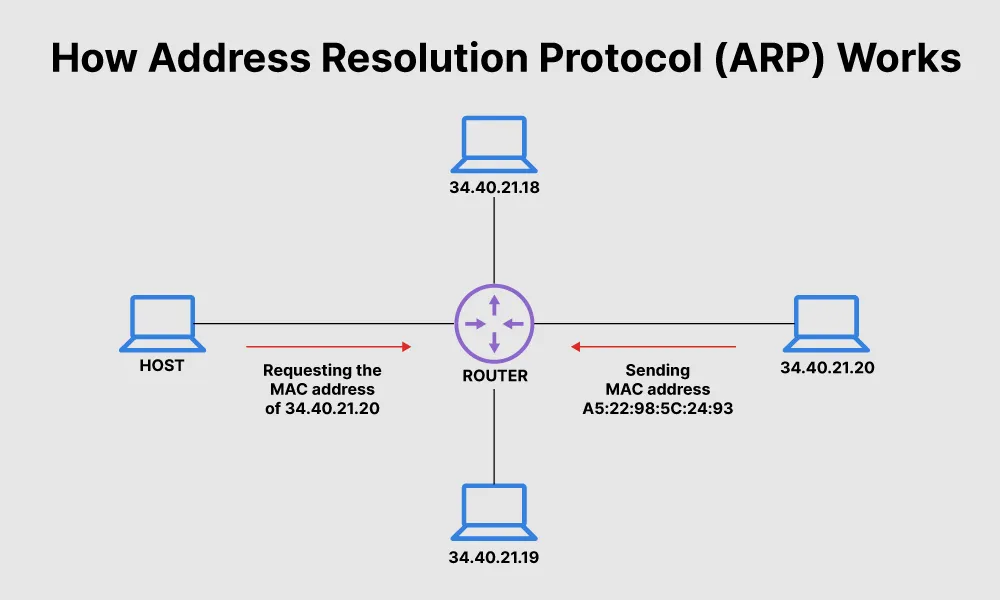
Address Resolution Protocol (arp)
arp maps IP addresses to physical MAC addresses of devices on the local network.
# Display local ARP cache table
arp -a
Socket & Active Port Listening (ss & netstat)
# Display active sockets, listening TCP/UDP ports, and process names
ss -tulpn         # Modern replacement
netstat -tulpn    # Legacy tool
DNS & Domain Intelligence (dig, nslookup, whois)
# Perform detailed DNS record queries (A, MX, CNAME records)
dig example.com

# Query DNS server to resolve hostname to IP (HTTP 80 / HTTPS 443 endpoints)
nslookup example.com

# Retrieve domain registration, domain owner, and hosting provider details
whois example.com
Connectivity & Network Path Diagnostics:
# Test host reachability (Limit to 4 ICMP requests)
ping -c 4 google.com

# Trace packet paths across network hops
traceroute google.com
tracepath google.com

# Combined live traceroute and ping diagnostic tool
mtr google.com

# Display or set hostname
hostname

# Static local DNS host mapping file
cat /etc/hosts
Security, Port Scanning & Firewalls (nmap & iptables)
# Scan a remote host to discover open ports and active services
nmap -v 192.168.1.1

# Inspect active Linux packet filtering firewall rules
sudo iptables -L -n -v
sudo iptables --list-rules
Data Transfer Tools (curl & wget)
# Send HTTP request and parse JSON output with jq
curl -s -X GET https://api.github.com/users | jq

# Download a file directly from the internet
wget https://example.com/release-v1.0.tar.gz
10. Storage Management: Linux Volume Manager (LVM)
LVM allows DevOps engineers to allocate, resize, and manage storage dynamically without taking system services offline.
+-------------------------------------------------------+
|                 Logical Volume (LV)                   |  --> Mounted to /mnt/data
+-------------------------------------------------------+
|                  Volume Group (VG)                    |  --> Combines PVs into a pool
+-------------------------------------------------------+
|  Physical Volume (PV1)  |   Physical Volume (PV2)     |  --> Raw Storage (/dev/sdb, /dev/sdc)
+-------------------------------------------------------+
Step-by-Step LVM Configuration:
Step 1: Initialize Physical Volumes (PV)
# Identify attached block devices
lsblk

# Create physical volumes on newly added disks
sudo pvcreate /dev/xvdf /dev/xvdg
sudo pvs   # Display summary of physical volumes
Step 2: Create a Volume Group (VG)
Combine multiple physical drives into a single unified storage pool.
sudo vgcreate devops_vg /dev/xvdf /dev/xvdg
sudo vgs   # Display volume group size and availability
Step 3: Create, Format, and Mount a Logical Volume (LV)
# Create a 10GB logical volume inside the volume group
sudo lvcreate -L 10G -n devops_lv devops_vg

# Format the logical volume with ext4 filesystem
sudo mkfs.ext4 /dev/devops_vg/devops_lv

# Mount the logical volume to a directory
sudo mkdir -p /mnt/devops_data
sudo mount /dev/devops_vg/devops_lv /mnt/devops_data

# Verify mount
df -h
Step 4: Dynamically Extend Storage (Online Extension):
If disk usage reaches capacity, you can scale the volume dynamically:
# Extend Logical Volume by +5GB
sudo lvextend -L +5G /dev/devops_vg/devops_lv

# Resize the underlying ext4 filesystem to utilize the newly added space
sudo resize2fs /dev/devops_vg/devops_lv

# Verify newly expanded storage space
df -h
